
FLPPPPP
-
Posts
1642 -
Joined
-
Days Won
127
Content Type
Forum
Store
Profiles
Cheats
Everything posted by FLPPPPP
-

May I use this for ABI.
FLPPPPP replied to fzw566's topic in Pre-Sale Questions and Payment Information
Hey, our cheat can't bypass encryption yet... As soon we update it we will change status to "available" and add description "encryption supported" on the product page. Keep eyes there -
Aqui esta o guide, se voce precisar de mais ajuda sugiro abrir um ticket no discord para facilitar... Todo o menu eh via website, nao tem menu dentro do game.
-
Clutch-Solution.com is proud to announce our new release Arc Raiders ESP. Get ready to dominate all lobbies with our latest product. More Information 1PC Cheat is available now Enjoy! Best regards, FLPPPPP Tags: Arc Raiders cheats, Arc Arcs Raiders cheat, Arc cheat, Arc Raiders hacks, Arc esp, arc aimbot, Arc Raiders, Arc, 100% undetectable
-
- 4
-

-
Done
-
Clutch-Solution is proud to annouce that we updated our eft cheats for the new Escape From Tarkov wipe and release of 1.0 Get ready for the new In-Game content. Secure playing and easy clutches with the best EFT cheats and hacks on the market. Available here. Added full support for Escape from Tarkov 1.0 Release Added full support for latest wipe Best Regards, FLPPPPP
-
- 1
-
-
2 PC DMA questions
FLPPPPP replied to ogpizzaboy's topic in Pre-Sale Questions and Payment Information
You welcome. Closing this thread -
2 PC DMA questions
FLPPPPP replied to ogpizzaboy's topic in Pre-Sale Questions and Payment Information
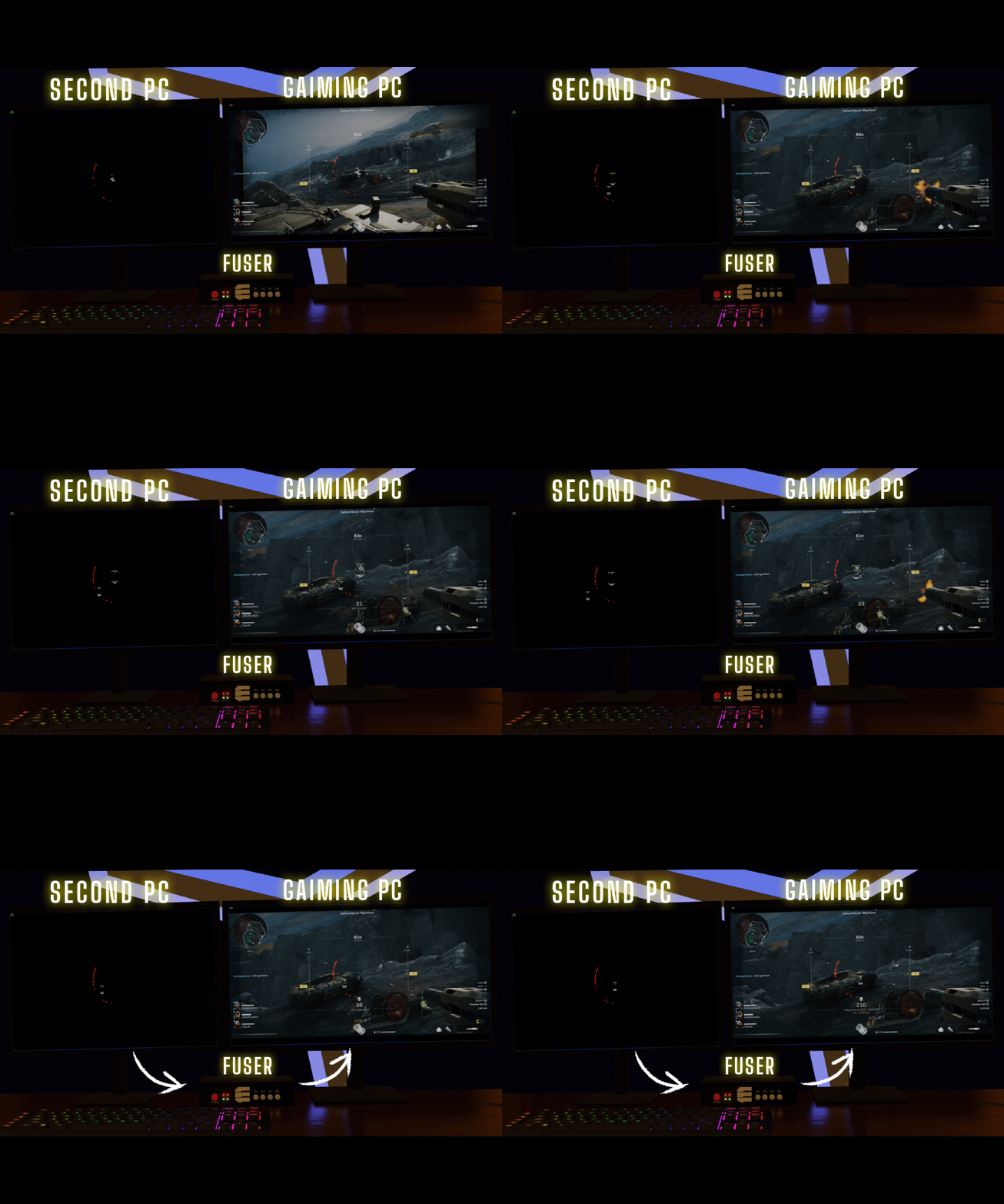
Everything what you described are correct Below preview how fuser works
-
Hey, sadly we don't have ETA yet for it. As soon we release update we'll make announcement about that and update status page.
-
Escape From Tarkov,Do you support custom item name languages
FLPPPPP replied to miao1040's topic in General Discussion
Hey, not yet. All items on item filter will appears using English language -
Answered on discord ticket
-
Hey, not on the plans
-
About Fuser And DMA
FLPPPPP replied to deadlight34's topic in Pre-Sale Questions and Payment Information
Hey, if you don't have fuser / DMA you need to look for 1PC Software https://clutch-solution.com/status/ -
Nao, Arena breakout voce tem que ter DMA card. o que exige que voce tenha 2 computadores. Main PC -> Onde o jogo roda e voce instala o DMA card. Segundo PC -> Onde o cheat roda e a magica acontece la. no caso do parsec como voce joga remotamente, voce joga usando o seu segundo pc, conectado ao seu Game Pc.
-
Clutch-Solution.com is proud to announce our new release Dead By Daylight ESP. Get ready to dominate all lobbies with our latest product. Killer or Survivor - You will be the one to win the game. More Information 1PC Cheat is available now Enjoy! Best regards, FLPPPPP Tags: Dead By Daylight cheats, DbD cheat, DbD 1PC cheat, Dead by Daylight hacks, DbD esp, Dead by Daylight, DbD, 100% undetectable
-
Hey, depends on which game you are playing. If you are playing games with BattleEye you should be fine. otherwise, I recommend to you upgrade to emulated version (for EAC/Javelin etc)
-
Boa tarde, acesso aos guides somente depois de voce ter comprado ao produto. Parsec e bem simples, voce vai instalar em ambos os PCs, e voce vai jogar usando seu segundo pc. Ou seja. o cheat e o parsec vai rodar no seu segundo-pc , voce vai se conectar remotamente via parsec no seu gaming-pc. ou seja voce vai jogar via remoto usando o parsec. Assim que funciona basicamente.
-

-
Clutch-Solution.com is proud to announce our new release Arc Raiders ESP. Get ready to dominate all lobbies with our latest product. More Information DMA Cheat is available now Enjoy! Best regards, FLPPPPP Tags: Arc Raiders cheats, Arc Arcs Raiders cheat, Arc dma cheat, Arc Raiders hacks, Arc esp, Arc Raiders, Arc, 100% undetectable
-
- 1
-
-
Enigma come with PRO version like stated on title
-
Hello, already come pre-flashed firmware 1:1.
-
Recommended but not mandatory
-
.detailHover:hover {color: rgb(112, 192, 255);} .detailHover {color: rgb(51, 154, 255);} DMA Card [Hardware] Information: Version: - Emulated Store: - https://enigma-x1.com/ Guide & Download: DMA Card Setup DMA Setup DMA STEP 1: PREPARE YOUR PC Click for Video 1. Install DMA Card in the Gaming-PC Turn off the Gaming-PC and plug the DMA-Card in -> When installing/uninstalling the DMA Card you should always completely power off the PC Insert USB cable into the DMA Data Port -> Use a USB 3.0 or faster cable for optimal speeds Insert the other side into a USB port on the Second-PC STEP 2: PREPARE YOUR BIOS 1. Power on the Gaming-PC and change the following BIOS settings on the Gaming-PC On Intel CPU disable VT-d On AMD CPU disable IOMMU 2. Save and exit from BIOS and continue to Windows -> If you get stuck on windows login you need to flash your DMA Hardware first STEP 3: PREPARE YOUR WINDOWS 1. Type "PowerShell" on the start menu on the Gaming-PC Open PowerShell with administrator privileges Type the following: REG ADD "HKLM\SYSTEM\CurrentControlSet\Control\Session Manager\Power" /V HiberbootEnabled /T REG_dWORD /D 0 /F Press "Enter" and you should get the following message: Disable-MMAgent -mc Press "Enter" and you should get this: If you're seeing this message, it means that memory compression is already disabled and everything is working as expected. 2. Restart your Gaming-PC STEP 4: DONE Make sure that your DMA Card has firmware that supported the game you want to play. You can buy firmware on our store Already have firmware? Go to Flashing DMA DMA Card already flashed? Go to Testing DMA Testing DMA Testing DMA STEP 1: PREPARE THE SECOND-PC 1. Disable Windows Defender 2. Uninstall all other Anti-Virus programs (BitDefender, MalwareBytes, etc.) 3. Download the Loader 4. Run the Loader Login with your clutch-solution username and password This will generate the Loader_username and open it STEP 2: START THE TOOL 1. Select "DMA Tool" 2. Click the button 3. Type "1" and press Enter to "Start Full Test DMA" If you get "Good test result" just press any key to start speed test -> If you do not get "Good test result" follow the instructions shown in the program -> If necessary, check the troubleshooting. Once the "Progress" shows (100%) check the results below ~130-220MB/s -> Good Speed ~35-130MB/s -> You are most likely on a USB 2.0 port or cable -> Recommended to use a USB 3.0 10gbit/s cable or better ~8-32MB/s -> Tiny Speed -> This means that your DMA will work at reduced speeds, most likely because of your firmware STEP 3: DONE Flashing DMA Flashing DMA You do not need to do this if your DMA card already has a firmware update. STEP 1: PREPARE THE SECOND-PC 1. Disable Windows Defender 2. Uninstall all other Anti-Virus programs (BitDefender, MalwareBytes, etc.) 3. Download the Loader 4. Run the Loader Login with your clutch-solution username and password This will generate the Loader_username and open it STEP 2: START THE TOOL 1. Select "DMA Tool" 2. Click the button 3. Type "4" and press Enter to start flashing your DMA If this message appears, the folder where you should place your firmware.bin file will automatically open 4. Select your DMA model and follow the instructions -> For example, if you have a LeetDMA, select #2 and press Enter 5. Read the instructions carefully 6. Type "Y" and press "Enter" to continue If everything is correct you should see a screen similar to this -> You might get a different amount of sectors, just make sure that none are missing in between. STEP 2: DONE Continue with testing dma. .detailHover:hover {color: rgb(112, 192, 255);} .detailHover {color: rgb(51, 154, 255);} HDMI-Fuser [Hardware] Information: Version: - Last one Store: - https://enigma-x1.com/ Guide & Download: HDMI-Fuser About Fuser About Your Fuser INTERFACE [HDMI Output]: Connect to the Main Display (the main screen for playing games) [HDMI1]: Connect to the Gaming-PC graphics card (the computer for playing games) [HDMI2]: Connect to the Second-PC graphics card [Type-C]: Flash program and inject EDID [DC12V]: Power supply (default 12V 2A) INDICATORS [D1]: Power light (Normal when turned on.). [D2]: Fusion function on/off indicator (On when turned fuser turned on) [H1]: HDMI1 Gaming-PC input signal light (Normal when turned on) [H2]: HDMI2 Second-PC input signal light (Normal when turned on) BUTTON FUNCTIONS [Power]: Power switch. [K1]: Short press: Cycle through the resolutions, 1920*1080@240hz, 2560*1440@144hz, 2560*1080@144hz, 3840*2160@60hz,, 3440*1440@60hz, Default: 1920*1080@240hz Press and hold for three seconds (press and hold until displayed): The current resolution and refresh rate are displayed in the upper left corner of the screen, the upper part is the Gaming-PC information, and the lower part is the Second-PC information [K2]: Short press: Cycle through the upper layer cutout intensity, 0-20 levels, a total of 21 levels, factory default 0 (0 also cuts out) [K3]: Short press: Restore the upper layer cutout intensity to the factory default 0 [K4]: Short press: Turn on/off the fusion function Setup Fuser Setup Fuser STEP 1: SET UP YOUR FUSER [HDMI Output]: Connect to the Main Display [HDMI1]: Connect to the Gaming-PC graphics card [HDMI2]: Connect to the Second-PC graphics card [DC12V]: Plug it into an outlet STEP 2: SET UP DISPLAY SETTING ON WINDOWS 1. On the Gaming-PC change windows display settings: Change the hertz to the maximum that the fuser/main monitor supports 2. On the Second-PC change windows display settings: Extended Display (Recommended) Change the hertz to the maximum that the fuser/main monitor supports STEP 3: SETUP DONE You are ready Flashing Fuser Flashing Fuser STEP 1: PREPARE YOUR SYSTEM 1. Plug in your usb-c cable into the Type-c port on your fuser, and plug the other end into your Second-PC STEP 2: DOWNLOAD AND INSTALL 1. Download the USB Driver on the Second-PC Run it Click Install 2. Download Monitor Asset Manager on the Second-PC Run It Click Install 3. Download Injector on the Second-PC Run It STEP 3: EXTRACTING EDID FROM MAIN MONITOR 1. Connect the monitor you want to extract the EDID from to your Second-PC Attention the monitor must be connected via HDMI cable and NOT display port 2. Open MonInfo.exe on the Second-PC -> 3. Select the monitor from which the EDID will be extracted 4. Go to "File" -> "Save as..." 5. Save the dspinfo.bin to your desktop STEP 4: INJECTING EDID INTO YOUR FUSER 1. Open Injector.exe 1. Select UART COM 2. Select which profile (Screen Size) you want flash-> Default is 1920x1080 3. Click on "Load Config" 4. Click on "Select config" and select your "dspinfo.bin" that you saved on your desktop in Step 3.5 5. Click on "Inject Config" and wait for the process to complete. The screen may go black during injection. Once the injection is successful, a prompt will appear 2. After a successful injection, disconnect the Type-C cable A popup like this means success STEP 5: FLASH DONE .detailHover:hover {color: rgb(112, 192, 255);} .detailHover {color: rgb(51, 154, 255);} DisplayPort-Fuser [Hardware] Information: Version: - Last one Store: - https://enigma-x1.com/ Guide & Download: DisplayPort-Fuser About Fuser About Your Fuser INTERFACE [DP]: Connect to the Main Display (the main screen for playing games) [HDMI1]: Connect to the Gaming-PC graphics card (the computer for playing games) [HDMI2]: Connect to the Second-PC graphics card [Type-C]: Flash program and inject EDID [DC12V]: Power supply (default 12V 2A) INDICATORS [D1]: Power light (Normal when turned on.). [D2]: Fusion function on/off indicator (On when turned fuser turned on) [H1]: HDMI1 Gaming-PC input signal light (Normal when turned on) [H2]: HDMI2 Second-PC input signal light (Normal when turned on) BUTTON FUNCTIONS [Power]: Power switch. [K1]: Short press: Cycle through the resolutions, 1920*1080@240hz, 2560*1440@144hz, 2560*1080@144hz, 3840*2160@60hz,, 3440*1440@60hz, Default: 1920*1080@240hz Press and hold for three seconds (press and hold until displayed): The current resolution and refresh rate are displayed in the upper left corner of the screen, the upper part is the Gaming-PC information, and the lower part is the Second-PC information [K2]: Short press: Cycle through the upper layer cutout intensity, 0-20 levels, a total of 21 levels, factory default 0 (0 also cuts out) [K3]: Short press: Restore the upper layer cutout intensity to the factory default 0 [K4]: Short press: Turn on/off the fusion function Setup Fuser Setup Fuser STEP 1: SET UP YOUR FUSER [DP]: Connect to the Main Display [HDMI1]: Connect to the Gaming-PC graphics card [HDMI2]: Connect to the Second-PC graphics card [DC12V]: Plug it into an outlet STEP 2: SET UP DISPLAY SETTING ON WINDOWS 1. On the Gaming-PC change windows display settings: Change the hertz to the maximum that the fuser/main monitor supports 2. On the Second-PC change windows display settings: Extended Display (Recommended) Change the hertz to the maximum that the fuser/main monitor supports STEP 3: SETUP DONE You are ready Flashing Fuser Flashing Fuser STEP 1: PREPARE YOUR SYSTEM 1. Plug in your usb-c cable into the Type-c port on your fuser, and plug the other end into your Second-PC STEP 2: DOWNLOAD AND INSTALL 1. Download the USB Driver on the Second-PC Run it Click Install 2. Download Monitor Asset Manager on the Second-PC Run It Click Install 3. Download FlashTool on the Second-PC Run It STEP 3: EXTRACTING EDID FROM MAIN MONITOR 1. Connect the monitor you want to extract the EDID from to your Second-PC Attention the monitor must be connected via HDMI cable and NOT display port 2. Open MonInfo.exe on the Second-PC -> 3. Select the monitor from which the EDID will be extracted 4. Go to "File" -> "Save as..." 5. Save the dspinfo.bin to your desktop STEP 4: FLASHING EDID INTO YOUR FUSER 1. Open EnigmaDPFuserFlashTool.exe 1. Select COM INDEX 2. Click on "Para file" 4. Click on "Choose file" and select your "dspinfo.bin" that you saved on your desktop in Step 3.5 5. Click on "Write para" and wait for the process to complete. The screen may go black during injection. Once the injection is successful, a prompt will appear 2. After a successful injection, disconnect the Type-C cable A popup like this means success STEP 5: FLASH DONE Makcu [Hardware] Information: Version: - V3.0 Support: - https://discord.gg/makcu - https://www.makcu.com/ .detailHover:hover {color: rgb(112, 192, 255);} .detailHover {color: rgb(51, 154, 255);} KmBox Net [Hardware] Information: Version: - Last one Store: - https://enigma-x1.com/ Guide & Download: KmBox Net Setup KmBox Net SETUP STEP 1: DOWNLOAD AND INSTALL 1. Download: Drivers on the Second-PC Run it Click Install 2. Connect your USB-Cables following this picture STEP 2: SET UP YOUR KMBOX 1. Type ncpa.cpl on start menu 2. Right click on "USB 2.0 Ethernet Adapter" then click on Properties 3. Select IPv6 then uncheck the checkbox 4. Select IPv4 then click on Properties 5. Select "Use the follwing IP address" Enter the IP that is displayed on your kmbox and increase it by one. -> Example: KMBox displays: 192.168.2.188 -> You write 192.168.2.189 Type Subnet mask: 255.255.255.0 Press OK STEP 3: DONE Flashing KmBox Net FLASHING STEP 1: DOWNLOAD AND INSTALL 1. Download: Flash Drivers on the Second-PC Run it Click Install 2. Download: Lasted firmware on the Second-PC Remove "???" from the file name Save it 3. Download: Flashtool on the Second-PC Run it STEP 2: START FLASHING PROCESS 1. Connect both USB cables into the Second PC 2. Unplug all USB from your kmbox 3. Hold down the tiny black button inside the case 4. Plug in USB at the same time to power it up. If screen goes white and the blue LED flashes fast, you're now in "Update Mode" 5. Open the flash tool from step 3 Select the USB device in the "DevList" Click "Select File", change file type to "*.bin" and select the .bin file from step 1.2 Click "Program" STEP 3: DONE After the process is done your kmbox will restart automatically and display the new firmware version .detailHover:hover {color: rgb(112, 192, 255);} .detailHover {color: rgb(51, 154, 255);} KmBox B+ Pro [Hardware] Information: Version: - Last one Store: - https://enigma-x1.com/ Guide & Download: KmBox B+ Pro Setup KmBox B+ Pro SETUP STEP 1: DOWNLOAD AND INSTALL 1. Download Drivers on the Second-PC Run it Click Install 2. Connect your USB-Cables following this picture STEP 2: DONE Flashing KmBox B+ Pro FLASHING STEP 1: SET UP YOUR KMBOX 1. Connect your USB-Cables following this picture 2. Check the Firmware version -> 20240130 - 30th January 2024 3. If the firmware version is from before August 2023 (08.2023) then DO NOT FLASH it will permanantly break the device -> Sometimes your seller can help with this -> If you have "activate it" message follow this guide STEP 2: DOWNLOAD AND INSTALL 1. Download Drivers on the Second-PC Run it Click Install 2. Download Lasted firmware on the Second-PC Remove "???" from the file name Save it 3. Download Flashtool on the Second-PC Run it STEP 3: START FLASHING PROCESS 1. Click OK 2. Open device manager and check the COM Port 3. Go to Tools -> Serial -> Select your COM port 4. Go to Tools -> BurnFirmware 5. On update Firmware select the following values: board: esp32 burn_addr: 0x1000 erase_flash: yes com: COM# from step 2 -> Select "Users" and click "choose" to select the .bin file you downloaded 6. Click "ok" and wait for Burn to finish STEP 4: DONE After the process is done your kmbox will restart automatically and display the new firmware version Changing Freq KmBox B+ Pro CHANGING FREQ STEP 1: PREPARE YOUR SYSTEM 1. Connect your USB-Cables following this picture STEP 2: DOWNLOAD AND INSTALL [SECOND-PC] 1. Download Drivers on the Second-PC Run it Click Install 2. Download Flashtool on the Second-PC Run it STEP 3: START PROCESS 1. Click OK 2. Open device manager and check the COM Port 3. Go to Tools -> Serial -> Select your COM port 4. Type "km.freq()" and press enter -> If you receive the message saying that it is configured at 500, you need to continue following this guide to change, if your kmbox is already configured at 1000, you can ignore it. 5. Go to "device" -> double click on "boot.py" 6. Search for "km.freq(500)" -> change to "km.freq(1000)" 7. Go to Tools -> "DownloadAndRun (F5)" -> You need to receive a message similar to this 8. Type "km.freq()" and press enter -> You need to receive the message saying that it is set to "1000" 9. Type "km.reboot()" and press enter 10. After the process is done your kmbox will restart automatically -> You need to receive a message similar to this. STEP 4: DONE
-
Ola, se voce deseja ter o ESP no PC de jogos voce tem que ter o fuser. outra opcao eh usar parsec, porem voce vai jogar atraves do seu segundo pc, controlando via remoto o game pc. E voce tambem precisa ter um cartao DMA alem do fuser.
-
faceit cs2 cheats
FLPPPPP replied to [email protected]'s topic in Pre-Sale Questions and Payment Information
Hey Hello!, our solution works on faceit, but you need to have a firmware which works on faceit as well (for DMA).- 1 reply
-
- 1
-
-
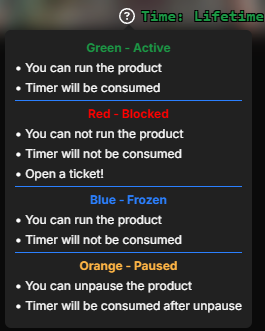
Means you can use the product without lost your subscription timer, while we are trying fix ShareX issue